Working with MP3copy
Adding files
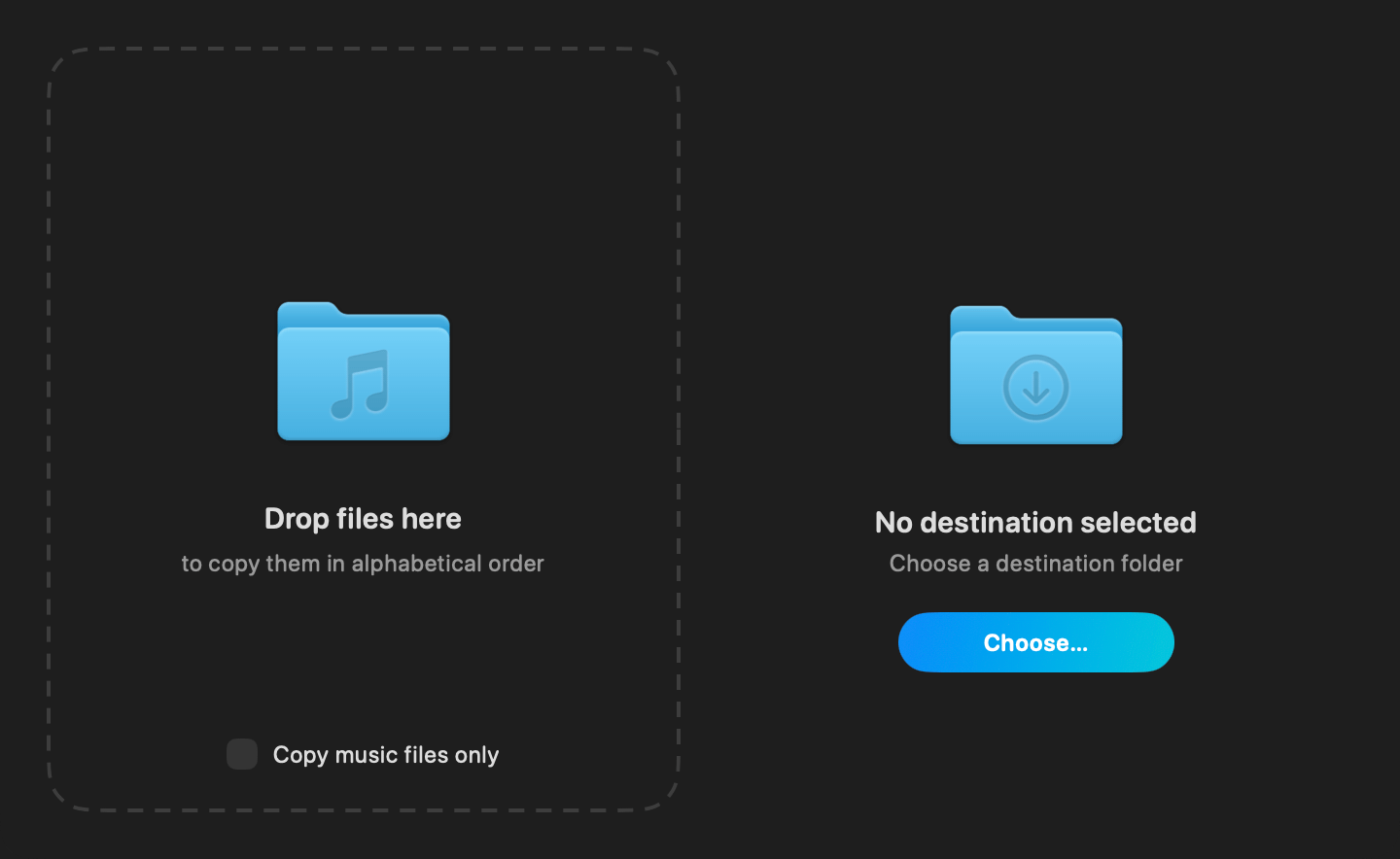
Drag files or folders onto the left panel, or click its folder icon (or choose File > Open…, ⌘O) to pick a source with a standard file browser. Dropping a folder queues every file inside it, skipping hidden and system junk files automatically. You can also drop files or folders straight onto MP3copy's icon in the Dock (or its icon in Finder, or use Open With) — it works exactly like dropping them onto the panel.
Choosing where files go
Click Choose… on the right panel to pick a destination folder — you can create a new one right from the picker dialog if you need to. Once one is set, the same button reads Change… and lets you pick a different one at any time — just not while copying is underway; changing destinations mid-batch is disabled so files from one drop can't end up split across two folders.
Copying in alphabetical order
Copying starts automatically as soon as both a file list and a destination are in place. You can keep adding files to the left panel while copying is underway — they're added to the end of the queue.
MP3copy copies exactly one file at a time, strictly in alphabetical order, waiting for each file to finish writing and verifying it against the source before starting the next. That's deliberate: copying a whole batch at once can let write caching on the destination reorder files on disk, even though they were added in the right order — copying one at a time is what guarantees the files land in the order you see them in the queue.
Tracking progress
The progress bar reflects total bytes copied across the whole batch, and the header shows how many files are done out of the total. Each row in the queue shows its own status as it's reached.

Pausing, resuming, and stopping
Click a file's row (or select it and press Space/Return) to pause it before or during its copy; click again to resume. A file paused partway through its copy picks up again from where it left off, rather than starting over. While copying is underway, the destination panel's button becomes Stop copying — this stops immediately, discards whatever was partially written for the current file, and clears the whole queue, including any files that hadn't been copied yet.

When there isn't enough space
If not even the very first file in the queue fits on the destination, copying can't start at all: the file count is replaced by a Clear list link, offering to drop the whole queue since there's nothing to pause yet. If your player exposes more than one storage location — internal memory and a separate SD card slot, say — switching Change… to the other one instead is often the faster fix here: your queue stays exactly as it is, so nothing needs to be re-added, and copying starts on its own once the new destination has room.

If the queue fits as far as some later file, copying doesn't wait on any of this: MP3copy starts right away and copies whatever does fit, marking the files that won't with a question-mark icon and pausing once it actually reaches, in order, one of them. The title above the file list then tells you how much space to free up, and it's the destination panel's button that reads Stop copying rather than offering Clear list, since part of the batch may already be sitting on the destination by this point.

Either way, the extra room has to come from you — freeing up space on the destination yourself, e.g. by deleting something else on it. MP3copy just rechecks automatically every few seconds and resumes copying on its own as soon as it finds enough room.
Copying only music
Before adding any files, you can check Copy music files only to limit what gets queued to recognized audio files, skipping anything else (booklets, images, text files, and so on).
Files that already exist at the destination
Some of the files being copied may already have been copied to the destination earlier. Whenever that would interfere with the correct alphabetical placement of files on disk, such files are deleted first and then written again at the right point in the sequence.